

Getting started#
Sign in, take the tour, learn the layout — and make My Work the page you open every morning.
Signing in
- 1
Open the sign-in page
Go to/loginand enter your work email and password. If your organisation has single sign-on configured for your email domain, type the email first and then choose Continue with SSO — the identity provider is discovered from the domain, so the field cannot be blank. - 2
Complete two-factor, if you have it
If your account has two-factor authentication enabled, the password step is followed by a six-digit code from your authenticator app. Accounts without it go straight through. - 3
Or create a new organisation
Start free leads to/signup: company name, your name, work email and a password of at least ten characters. That creates your own isolated tenant with you as its administrator.
The guided tour
On your very first sign-in a short tour highlights the areas you can reach, with Back, Next, Skip and Finish. It is filtered by permission — you are never walked through a module you cannot open — and administrators get three extra setup steps covering inviting the team, the organisation structure, and administration & SSO. Once you finish or skip it, it does not come back.
How the screen is laid out
- Left sidebar — your modules, in fixed groups. Only modules your tenant licenses and you have view permission on appear. Enterprise Dashboard and My Work are always there because they only ever show your own data.
- Top bar — a global search box (press Enter to land on
/search), a Copilot shortcut, a notification bell with the unread count, and your avatar menu. - Avatar menu — My account (profile, password, two-factor), the theme control, and Sign out.
- Theme — a Light / Dark / System segmented control in that menu. Your choice is remembered in a cookie, so the correct theme is rendered on the server the next time you load a page — no flash.
- Language — the sign-in and landing pages carry an EN / DE / FR switch, and the platform chrome (navigation and shell) follows it.
Where everything lives
26 modules sit on one shared data model. These are the sidebar groups in order:
Make My Work your home page
My Work is a single inbox of everything assigned to, or waiting on, you — it ignores module boundaries entirely. Four counters sit above four lists:
- Approvals awaiting me — workflow decisions that cannot proceed without you, with the record they are holding up.
- Overdue & due soon — everything you own that is approaching or past its date: risk reviews and control tests due within seven days, issue SLA deadlines within three, action plans and tasks within seven, and vendor contract renewals within thirty.
- Evidence requested from me — open evidence requests raised by an audit engagement.
- Assigned to me — the rest of your open issues, incidents and action plans.
From the header, My Controls opens the control owner’s dedicated panel: only the controls you are responsible for, split into drafts to implement, controls that need attention (each row names why — an overdue test, a failed test, an escalation already climbing), healthy ones on their testing schedule, and the controls where you are the deputy. Being made owner or deputy of a control notifies you and this page is where that notification lands.
When all four are empty the page simply says you are caught up. Unread notifications are linked from the header rather than duplicated in the lists.
Set up your organisation#
Structure, people and permissions first. Everything downstream — what a person sees, what a report contains, what the copilot may read — is derived from these three things.
- 1
Build the organisation structure
/organization→ Add unit. Each unit has a type (company, subsidiary, division, business unit, department, team or legal entity), a parent, and optional region, country, cost centre, location and unit head. The hierarchy is not decoration: permissions can be scoped to a unit and everything beneath it, so build it before you invite people. - 2
Invite your colleagues
/identity→ Add user: name, email, role and org unit. The user table shows each person’s roles, two-factor state, status and last login. You can later change someone’s role or set them to suspended or deprovisioned with Edit. - 3
Understand the permission model before you assign roles
A role is a list of grants, each writtenmodule.action@scopeand shown that way on the role card. Actions areview,create,update,delete,approveandadmin;*is a wildcard and anadmingrant on a module implies every action on it. - 4
Choose the right scope for each grant
allmeans the whole tenant,orgunitmeans the user’s org unit and its subtree, andownmeans only records they own. If several grants match, the widest one wins. The scope is applied to the database query itself, so it shapes every list, every export, every report and the copilot alike. - 5
Check segregation of duties
The Identity page has a Segregation of duties panel that flags any user who holds both an origination action (create or update) andapproveon the same module, and tells you how many people hold full platform admin. Review it after every round of role changes. - 6
Use delegations instead of permanent grants for cover
New delegation grants a role to someone temporarily: delegatee, role, reason and an expiry date. It lapses on its own and can be revoked early, and the table shows active, expired and revoked delegations side by side.
Enterprise sign-in: SSO, MFA and SCIM
- SSO (OIDC) —
/admin→ Single Sign-On (your IdP). Supply the issuer URL, client ID, client secret and your email domain; the configuration is validated against the issuer before it saves. The redirect URI to register in your IdP application is printed on that card (/api/auth/sso/callback), and the client secret is stored encrypted with AES-256-GCM. MFA policy for SSO users stays in your identity provider. - MFA in the platform — each person enables it themselves under My account → Two-factor authentication: scan the code with an authenticator app and confirm. The Identity page shows enrolment as a percentage, which is the number to watch for privileged roles.
- SCIM 2.0 provisioning — the platform exposes a SCIM server at
/api/scim/v2with Users and Groups (a SCIM group maps onto a role) plus the standardServiceProviderConfig,ResourceTypesandSchemasendpoints. It authenticates with a platform API key that hasidentityview and create grants — create one in Administration and paste it into your IdP as the bearer token.
Licensing, branding and custom fields
- Module licensing —
/adminshows which of the 26 modules your tenant has licensed. Unlicensed modules disappear from navigation, from the API and from the copilot’s reach; they are not merely hidden. - Licensed seats — the Tenant card shows seats in use against your licence. API service accounts and deprovisioned leavers do not hold a seat; suspended users do, deliberately, so the cap cannot be dodged by parking people. Users & Identity leads with the same figure and warns from 80%.
- Branding & locale — organisation name, industry, brand colour, timezone and locale, all editable. The colour drives the sidebar mark and the branded board and regulator reports.
- Risk methodology — the matrix size (3×3, 4×4 or 5×5) and the default review cadence stamped onto newly created risks. Existing ratings are never rescaled by a size change.
- Coverage methodology — the staleness fallback for event-driven and unscheduled controls, and whether continuous monitoring counts as testing (off by default: a flag is not evidence). Every coverage figure and every printed methodology note recomputes from these on the next render — they are derived, never stored.
- Escalation defaults — the three day-counts stamped onto newly installed controls, and the per-rung days for overdue approvals. Each control stays individually tunable afterwards.
- Custom fields — New field adds a tenant-defined field (text, number, date, select or boolean, optionally required) to risks, controls, issues, incidents, vendors, assets or audit engagements. It then appears on every record’s detail page.
- Activity trail — an append-only audit log of who did what and when, on the right-hand side of the same page.
The control-centric core#
This is the part that makes the rest of the platform cheap. Build the control library once and it services your risks, your frameworks, your auditors and your evidence at the same time.
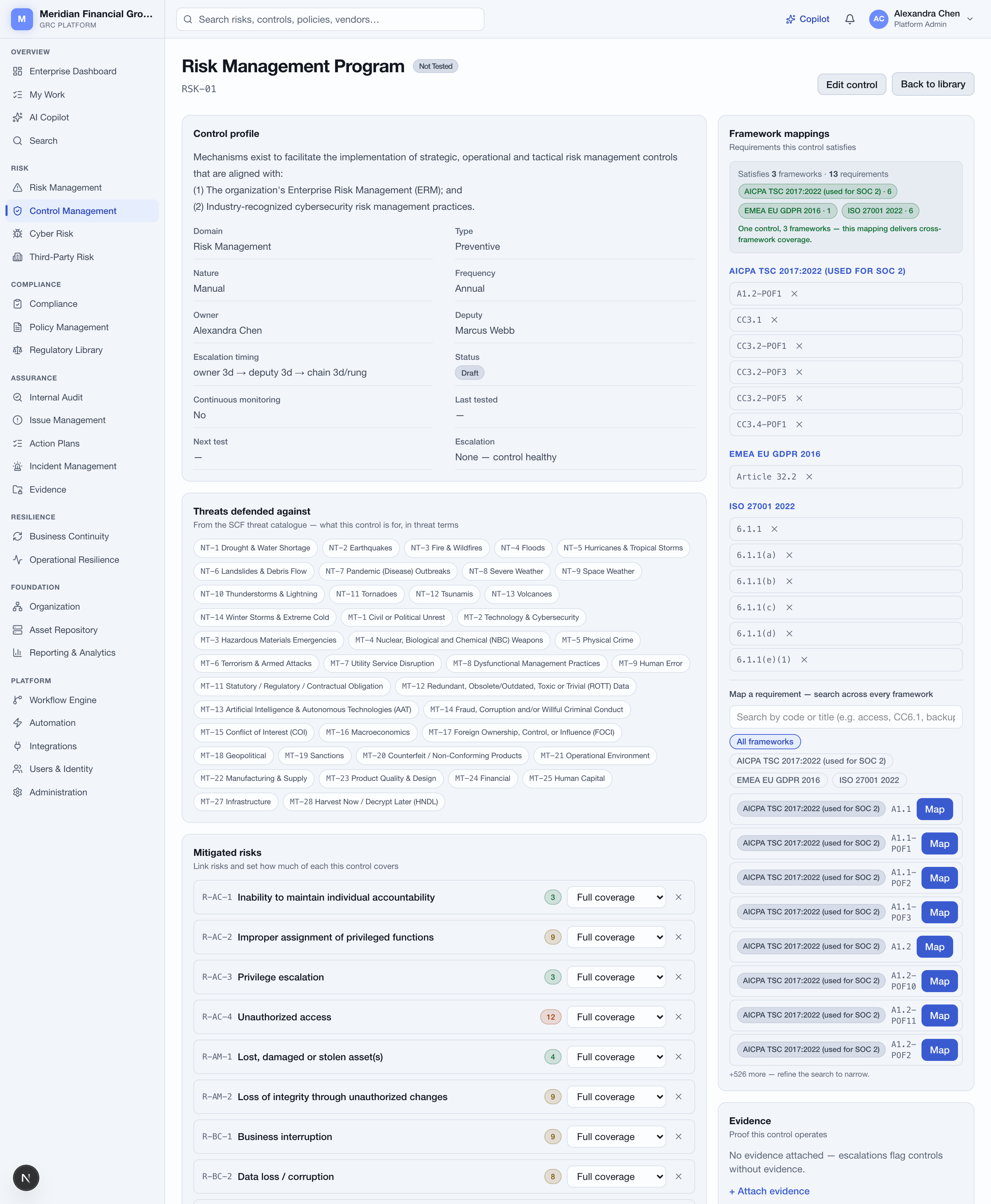
- Mitigated risks — each linked risk carries its own full or partial coverage, so a control that only partly addresses a risk says so.
- Framework mappings — this single control satisfies 13 requirements across all three installed frameworks (ISO 27001, SOC 2 and GDPR) while mitigating 38 of the 39 catalogue risks. Operate it once, test it once, and every framework and every linked risk gets the assurance. That is the entire argument for organising around controls.
The five-step loop
- 1
Create the control
/controls→ + New control: name, description, type (preventive, detective or corrective), nature (manual, automated or hybrid), test frequency (continuous, daily, weekly, monthly, quarterly, annual, or event-driven for a control that runs on a trigger rather than a period) and whether it is continuously monitored. Bringing a library across from a spreadsheet? Use Import instead — see working the registers. - 2
Link the risks it mitigates, with coverage
On the control, the Mitigated risks card lets you pick a risk and Link risk. Every link carries a coverage setting — Full coverage or Partial coverage — so a control that only partly addresses a risk is recorded honestly rather than inflating your mitigation picture. The risk’s own page shows the controls linked to it, and warns you when there are none. - 3
Map framework requirements — from any framework
The Framework mappings card searches across every installed framework at once, with chips to narrow to one framework. Hit Map on each requirement this control satisfies. Once it satisfies two or more, the card shows a cross-framework coverage banner — that is exactly the leverage you are looking for. - 4
What you can search by, and why
Search matches a requirement’s code and its title. For frameworks installed from the built-in library, those are the same string — searchCC6.1,Article 25.1or8.26, not “access”. The library licenses the mapping between controls and clause identifiers; it does not carry the authorities’ own requirement text, which is copyrighted by ISO, AICPA and the rest. The framework’s source link is the route to the official wording. Requirements in frameworks you add yourself carry whatever titles you paste, so word search works fully on those. - 5
Attach the evidence
+ Attach evidence on the control records a named evidence item against it. To store the actual file, upload it in the Evidence module and link it to the control there; either way it appears on the control’s Evidence card. - 6
Test it and let the platform do the bookkeeping
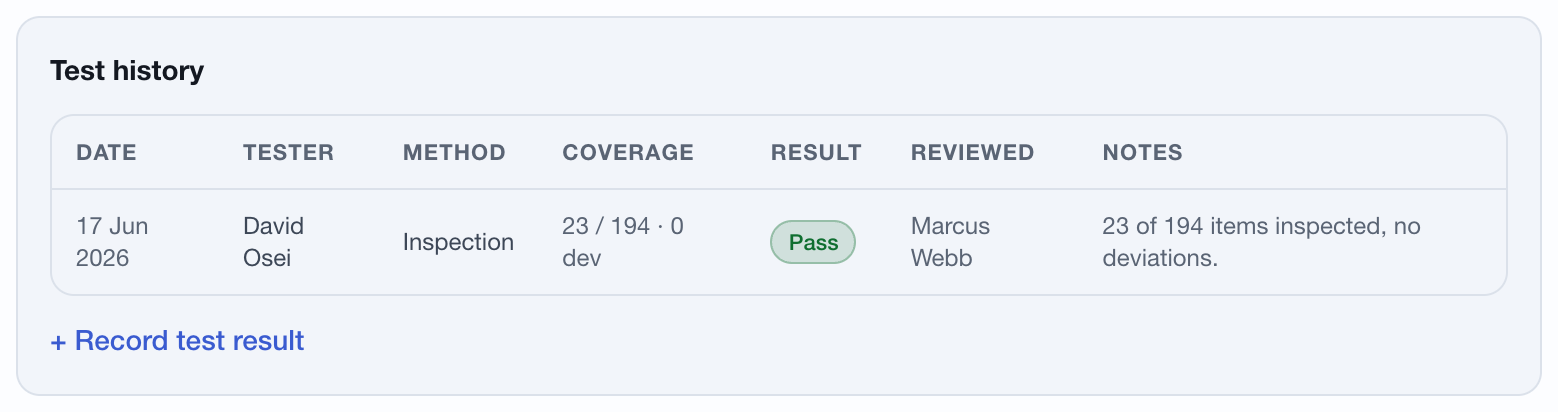
+ Record test result: result (pass, partial or fail), method (inquiry, observation, inspection, reperformance or automated), the population and sample you examined, how many deviations you found, the date the test actually happened, and notes. Population matters: twenty-five items is thorough against a population of thirty and close to meaningless against four hundred thousand, and a sample size alone cannot tell you which you did.
The figures have to agree with each other. A sample larger than its population, more deviations than items examined, a date in the future, or a test that found deviations but is filed as a clean pass will all be refused. No deviation tolerance is imposed — how many exceptions are acceptable is your sampling standard to set, not ours.
Saving updates the control in one step — pass becomes Effective, partial becomes Partially effective, fail becomes Ineffective — stamps the last-tested date, and sets the next test date from the control’s frequency. That next date is what puts the control on the owner’s My Work when it comes due. An event-driven control gets no next date, because there is no period to add — it falls due when its trigger happens, and inventing a deadline would only age it into a false warning. A test you backdate will not overwrite a more recent result, and a failed test raises an issue automatically, carrying the sample, the deviations and your notes.
When nobody acts: the escalation chain
An active control is unhealthy when its assurance is broken — test overdue, rated ineffective, never tested, no evidence attached, or a linked open risk still exceeding appetite. Unhealthy controls do not wait politely. The chain notifies the owner first, then climbs your actual org chart: the control’s deputy (or the owner’s standing deputy), then the owner’s supervisor, then that person’s deputy, then their supervisor — and so on until it tops out at management. A rung with nobody in it is skipped without consuming its time, because waiting three days to notify nobody is not escalation, and the moment the control is healthy again the ladder resets.
- The timings are the admin’s, per control — days for the owner, days for the deputy, days at each further rung. New library controls arrive with your tenant defaults (Administration → Escalation defaults) and each control stays individually tunable on its edit form.
- The chain is built in Users & Identity — each user carries a supervisor and a standing deputy. That one org chart also drives overdue approvals, which climb the same ladder on a tenant-wide rung timing.
- A control cannot go active without an owner and a deputy — active is the moment the chain starts meaning something, and a chain with empty first rungs would fire straight past the people meant to act. The deputy may be the control’s own or the owner’s standing one.
What a control defends against
Every library control names the threats it defends against, from the built-in threat catalogue — 42 natural and man-made threats — shown as chips on the control’s page. /cyber rolls the same data up into Threat coverage: for each threat, how many installed controls defend it and how many of those are active and tested effective. Drafts defend nothing, the same rule as coverage everywhere, and a threat absent from the list has no installed control addressing it at all — which is your gap list, stated in threat language rather than clause numbers.
How risks are scored
Likelihood and impact are each rated on your organisation’s matrix — 3×3, 4×4 or 5×5, set in Administration — and the score is the two multiplied. On the default 5×5 the labels run 1 Low to 5 Critical and the bands are Critical from 20, High from 12, Medium from 6; smaller matrices carry their own thresholds. Every form, validation rule, band chip, heatmap and report follows the size you set, and changing it never rescales a recorded rating — a score stays what the assessor said. The full scale and matrix sit at the top of /risk and are printed at the front of the risk register report, because a score means nothing to a reader who does not know what produced it.
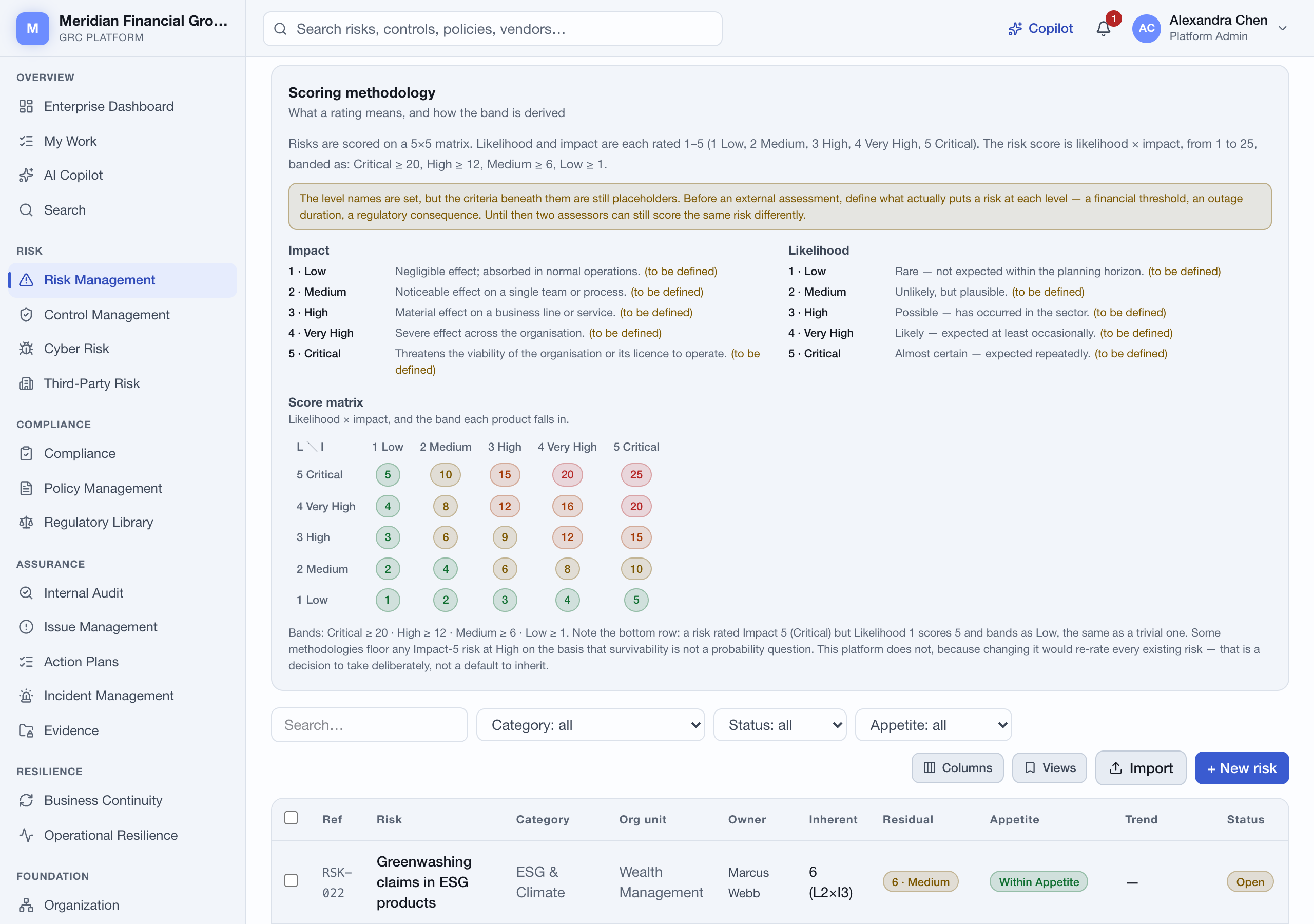
The level names are set; the criteria beneath them are yours. Until you define what actually puts a risk at “Very High” — a financial threshold, an outage duration, a regulatory consequence — the panel says so, because two assessors working from names alone will still score the same risk differently. Categories, meanwhile, are fully yours: Manage categories on the register renames them or merges one into another — its risks move with it — so an imported taxonomy and your house vocabulary converge instead of running in parallel.
The risk side of the link
/risk→ + New risk takes a title, description, category, likelihood and impact on a 1–5 scale, and a treatment strategy (mitigate, accept, transfer or avoid). The score is likelihood × impact, banded low through critical.- Residual scoring is deliberate, not derived. Open a risk and use Edit risk to set residual likelihood and impact yourself, alongside appetite position (within appetite, near limit, exceeds appetite), trend, velocity, owner, treatment plan and the next review date. The platform does not silently recalculate residual exposure from control coverage — a human decides it, and the register shows both numbers side by side.
- Key risk indicators live on the risk: add a KRI, then record readings against it; current value and status update as you go, and the register surfaces them above the table.
- Review history — + Record review logs who reassessed the risk and at what likelihood and impact, which is what an auditor will ask for.
- AI-suggested controls — the risk page proposes controls already in your library with textual affinity to that risk, so you reuse before you create.
Working the registers#
Risk, Control Library, Issues, Third-Party Risk and Asset Repository all share one table. Learn it once and you have learned all five.
The toolbar, left to right
- 1
Search
The Search… box filters as you type, across the identifying columns of that register — reference and title on risks and issues, reference and name on controls, name and category on vendors. - 2
Facet filters
The dropdowns next to it filter on exact values and read Status: all until you pick something. Each register offers the facets that matter to it — category, status and appetite on risks; type, nature, effectiveness and status on controls; severity, source and status on issues; tier, risk level and status on vendors. Clear appears as soon as any search, filter or sort is active and resets all three. - 3
Sort
Click a column header to sort ascending, click again for descending, click a third time to remove the sort. Dates and numbers sort as dates and numbers, not as text. - 4
Columns
Columns opens a checklist of every hideable column. Turn off what you do not need — a register with six relevant columns is far more readable than one with thirteen. - 5
Saved views
Views → Save current view stores the whole state — sort, filters, search text and hidden columns — under a name you choose. Views are saved per person per register on the server, so they follow you between browsers. Mark one default and it is applied automatically every time you open that register; the ✕ deletes one. - 6
Bulk actions
Tick rows (or the header checkbox to take everything currently filtered) and a bar appears showing N selected with Reassign owner…, Set status… and Delete. Deletion asks for confirmation and cannot be undone. This is the fastest way to clean up after an import. - 7
Import and the row count
Import opens the CSV dialog described below, and the line under the table always reads n of m so you can see how much your filters are hiding.
CSV import: the columns each register accepts
Upload a file with a header row. Column names are matched case-insensitively, unknown columns are ignored, and up to 2,000 rows are processed per file.
| Register | Required | All recognised columns |
|---|---|---|
| Risk | title | title, description, category, owner, inherentLikelihood, inherentImpact, residualLikelihood, residualImpact |
| Controls | name | name, description, type, nature, frequency, owner |
| Vendors | name | name, category, tier, owner, contactEmail, website |
| Assets | name and type | name, type, criticality, environment, owner, ipAddress |
| Issues | title | title, description, severity, source, owner |
- The
ownercolumn is matched on email address. An address that does not belong to a user in your tenant does not fail the row — the record is created unassigned and you get a warning naming the address. - Rows missing a required column are skipped and listed individually, so you can fix and re-upload only those. The result panel reports Imported N of M rows with separate Warnings and Skipped rows lists.
- Out-of-range or unrecognised values fall back to a sane default rather than failing: likelihood and impact outside 1–5 become 3; an unrecognised control type becomes preventive and nature becomes manual; an unrecognised issue severity or asset criticality becomes medium; an unrecognised vendor tier becomes tier 3. Check the imported rows before you trust them.
- Imported records are created open and active, with references allocated automatically (
RSK-…,CTL-…,ISS-…).
Compliance & frameworks#
Install a framework, map controls to its requirements, and coverage, gaps and the crosswalk compute themselves.
Install the frameworks you are subject to
/compliance → + Install a framework is the install unit: pick ISO 27001, SOC 2, GDPR, NIS2 — any of the 247 on offer — and it arrives as a group: the framework’s requirements, the library controls that answer them, and the risks those controls mitigate, already linked. The library behind this holds 1534 controls in 34 domains; a framework installs only its own group, and anything shared with a framework you already have is reused, not duplicated. Individual controls can be added one at a time from the library picker in the /controls page header.
Every installed control brings its half of the risk register with it: the risks it mitigates (from the catalogue of 39) arrive already linked. A risk is created once and only once — installing a second control that mitigates an existing risk links to it rather than duplicating it, so the register stays one list of real exposures however many controls you add. Risks arrive unrated, and say so: the catalogue states no likelihood or impact, so re-rating against your own criteria is the first real piece of work.
One library, plus your own
The built-in library is the catalogue: no library framework arrives without the controls that answer it, which is what stops the register filling with requirements nobody owns. Anything beyond the catalogue enters as a custom framework — the next section — so there is exactly one of each kind and never two records claiming the same standard.
Requirement codes are the public reference identifiers of each standard; the normative text stays with the standards body, and each framework links to the publisher’s own copy of the document.
Custom frameworks, in two clicks
For anything the library’s 247 authorities do not carry — a FINMA circular, a client-specific baseline, a contract annex — /compliance → + Custom framework creates the framework (name, short name, category, source URL), and + Add requirements on its page takes a straight paste: one requirement per line, CODE | Title, with pipe, tab or comma all accepted. Duplicates within the paste collapse and existing codes are skipped rather than overwritten, so re-pasting an amended list can never destroy the control mappings hanging off the originals. Map controls to the new requirements from each control’s own page, and coverage computes like any other framework. Library-managed frameworks refuse hand-added rows — they grow through the installer, and a framework should never have two owners.
Data privacy principles
/compliance/privacy shows the library’s 86 data-privacy management principles as a lens over the controls you already operate — each principle with the controls that operationalise it, graded not started / partially stood up / effectively delivered from your live control state. It is deliberately not a separate privacy register: a principle, like an authority, is another way of reading the same library.
Coverage and gap analysis
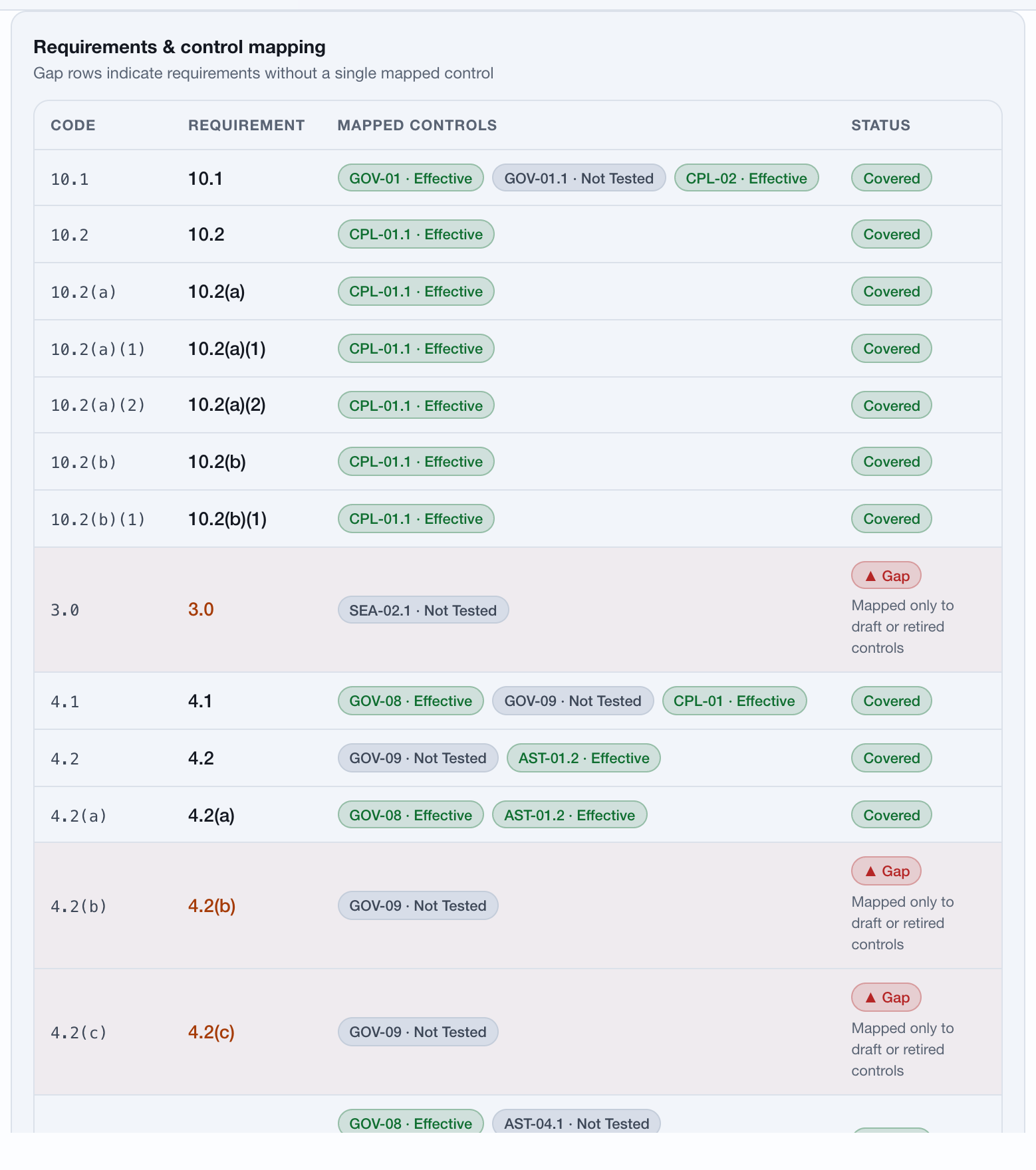
- A requirement counts as covered only when at least one mapped control is active, rated effective, and tested within its own cadence plus grace — an annual control has twelve months, a quarterly one about four and a half, a monthly one two; event-driven and unscheduled controls fall back to a window your admin sets (Administration → Coverage methodology). A mapping on its own is not coverage: a requirement pointed at a retired, untested or ineffective control still reads as a gap, and the row tells you which of those it is.
- Requirements land in one of four states. Covered as above; Partial where the best mapped control is only partially effective (counted at half weight); Excepted where an approved exception formally accepts the gap; and Gap for everything else.
- An exception never counts as coverage — it records a decision to accept a gap, not evidence that one was closed — and excepted requirements stay in the denominator. Accepting more exceptions can therefore never raise your percentage.
- The Compliance overview gives you one card per framework with its coverage bar and gap count, an overall donut, and four headline figures: frameworks active, coverage, unmanaged gaps and open exceptions. Every figure there is pooled across the requirements of your active frameworks, so it always agrees with the dashboard.
- Open a framework and the Requirements & control mapping table lists every requirement with the controls mapped to it; gap rows are highlighted and labelled. The Mapping effectiveness card then tells you how many of those mappings rest on controls actually tested effective — coverage and assurance are not the same thing.
- Raise remediation issue on a framework with gaps creates a single issue in Issue Management covering them, and takes you straight to it.
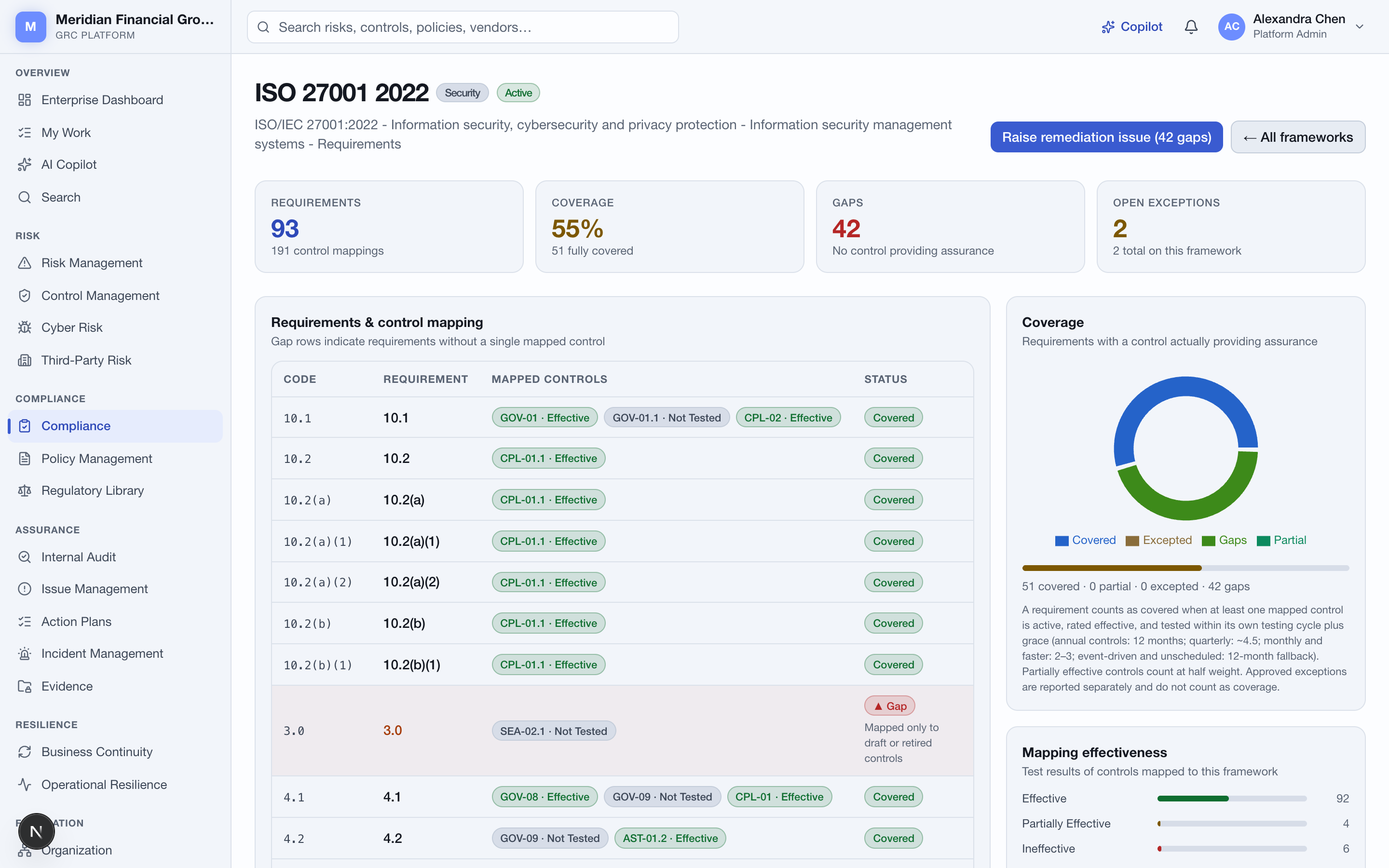
- Coverage — the weighted figure, with how many requirements are fully covered versus partial underneath.
- Gaps — requirements where nothing is currently providing assurance. Counted separately from open exceptions, because an accepted gap is still a gap.
The framework crosswalk
/compliance/crosswalk proves the one-control-many-frameworks thesis against your real mappings. It has three lenses:
Exceptions
- 1
Request the exception
On the framework page, + Request exception takes a title, optionally the specific requirement it deviates from, a justification (compensating controls, rationale) and an expiry date. It is created pending. - 2
Decide it
Someone with update permission on Compliance uses Approve or Reject on the same row; the approver is recorded against the exception. - 3
Watch it expire
The exception register on the Compliance overview lists every exception with its requirement, framework, status, approver and expiry — flagging those inside 30 days of expiry and those already expired. Requirements with an exception are badged on the framework page.
Assurance: issues, incidents, audit and evidence#
Everything that needs fixing lands in one register with a clock on it — however it was found.
Issues and the SLA clock
- Issues arrive from every direction and carry their origin as a source: audit, risk, incident, compliance, vendor, policy, security or manual. The register is filterable by all three of severity, source and status.
- The SLA due date is set automatically from your organisation’s severity policy when the issue is created — the defaults are critical 14 days, high 30, medium 60, low 90, and your admin changes them under
/admin→ Issue SLAs. The policy applies however the issue arises: typed in by hand, raised from a gap analysis, raised by a failed control test, created by an automation rule, or imported from CSV. - When a remediation date is negotiated rather than computed — an auditor grants an extension, a fix ships with the next release — Edit details on the issue lets you set the deadline directly, and the change lands in the audit trail like any other.
- Status runs open → in progress → pending verification → closed, with accepted as the alternative ending. The four headline figures are open issues, SLA breached, escalated and closed this quarter.
- Breaches and escalations sort to the top of the register, and any issue you own appears on your My Work three days before its deadline.
Worked example: a backup-restore test fails
- 1
The test is recorded honestly
The owner ofBCD-11 Data Backupsruns the quarterly restore test: sample of 8 restores, 2 fail. The platform refuses to file that as a pass — a test with deviations must be partial or fail — so it goes in as a fail with notes. - 2
The issue raises itself, clock running
A high-severity issue is created automatically, sourcedcontrolTesting, owned by the control’s owner, with the SLA deadline from your policy. The owner is notified the moment it exists — no meeting decides whether the failure “counts”. - 3
Ignoring it is not an option
The control is now ineffective, so it stops earning compliance coverage for every requirement it maps to, and the escalation ladder starts: owner, deputy, supervisor, upward — on the timings your admin set for that control. - 4
Fix, verify, close — with a record
The owner records root cause and corrective/preventive actions on the issue, re-tests the control once the fix lands, and moves the issue through pending verification to closed. The audit trail holds the failed test, the issue, every status change and the passing re-test — the whole story an auditor asks for, already in order.
Incidents
/incidents → Report incident captures a title, type (fraud, data leak, outage, human error, regulatory breach, security or operational), severity, what happened and the impact. A timeline entry is created for you at the moment of reporting; you then add events and move the status as the response progresses.
Internal audit
- 1
Plan the engagement
/audit→ + New engagement: title, type (internal, external, SOX, regulatory or vendor), risk rating, lead auditor, org unit, scope, objective, planned start and end, and the plan year. - 2
Move it through the lifecycle
Engagements run planned → fieldwork → review → reporting → closed. The overview charts engagements by phase and findings by severity, and lets you filter the list to one phase. - 3
Do the fieldwork
Inside an engagement, add Workpapers as testing progresses and track how many are reviewed or signed off. - 4
Raise findings
Raise finding records the finding with a severity, owner and due date; overdue open findings are marked. Findings carry their own evidence and can be linked to a remediation issue. - 5
Request evidence from the business
Request evidence assigns a request to a named person with a due date. It appears in their My Work under “Evidence requested from me”, and overdue requests are counted on the audit overview.
The evidence repository
/evidence→ Upload evidence: a file of up to 15 MB, an optional display name, and the record it belongs to — a risk, control, audit, issue, policy, vendor, incident or asset.- Each upload is stored with a SHA-256 integrity hash (shown truncated in the register), classified automatically from the file name, and given a three-year retention date.
- Evidence starts pending. Anyone with update permission on Evidence accepts or rejects it, and the reviewer is recorded next to the decision. The pending count sits in the header, and the chips above the table filter by what the evidence is linked to.
Third-party risk#
Register the vendor, send a questionnaire they can answer without an account, score what comes back, and keep the certifications and renewal dates honest.
- 1
Add the vendor
/vendors→ + New vendor: name, category, tier (1 is critical), owner, website, contact name and email, data access level, and contract start, end and annual value. New vendors start in prospective status for due diligence. - 2
Send a questionnaire
On the vendor, Send questionnaire offers three sets — Security (10 questions), Privacy / GDPR (6) and Financial health (4) — addressed to the vendor’s contact email. - 3
The vendor answers on the external portal
They receive a secure token link to a standalone page with no platform chrome and no account required. They answer each question, state who they are — name and work email, required, with the submitting address recorded — and submit. An anonymous questionnaire response is not assurance, and the review card names the respondent. Links are valid for 30 days, and a link that has already been submitted or has expired says so plainly rather than failing silently. - 4
Review and score
The answers appear on the vendor record. Add a risk note against individual answers, set an overall score from 0 to 100, and move the assessment to reviewed, approved or rejected. - 5
Track certifications and renewals
Add certification records a certificate with its issue and expiry dates and whether you have verified it; expired certificates are counted on the register as assurance gaps. Contracts ending within 180 days are listed on the overview, and a renewal lands on the owner’s My Work 30 days out.
The register itself is the same shared table as everywhere else, so tier, risk level and status filters, saved views, bulk owner reassignment and CSV import all behave exactly as described in working the registers.
Worked example: onboarding a payroll provider
HR wants to sign a payroll SaaS — salary data for every employee, so this is not a tier-3 stationery supplier. The vendor manager registers it as tier 2, data access “confidential”, status prospective, and sends the Security and Privacy/GDPR questionnaires in one sitting. The vendor’s DPO answers on the portal the same week — no account to provision, and the response carries their name and work email, so the assurance is attributable. Two answers come back weak: subprocessors in a third country, and no recent penetration test. The reviewer notes the risk against exactly those answers, scores the assessment 62, and approves — with the contract owner recording an ISO 27001 certificate and its expiry date so the claim is tracked, not just remembered. From here the platform keeps the relationship honest on its own: the certificate expiring will be counted as an assurance gap on the register, and the contract renewal lands on the owner’s My Work 30 days before the end date — the renewal conversation starts because the platform raised it, not because someone remembered.
Automation & workflows#
Two different tools that people mix up. Automation removes work nobody needs to think about. Workflows route decisions to people who do.
Automation rules
/automation→ + New rule. A rule is a trigger plus an action. The trigger is a module, an event name and — optionally — one condition made of a field, an operator (equals, not equals, ≥, ≤) and a value.- Triggerable modules: Issue Management, Incident Management, Cyber Risk, Third-Party Risk, Control Management, Compliance, Internal Audit, Business Continuity and Asset Repository. Events are named, for example
issue.created,vendor.updated,control.testedorfinding.created. - Actions available today: notify owner; escalate to admins; create an issue (severity and SLA days optional — left blank, the SLA follows your Issue SLA policy); flag the linked risk for review; AI triage (advisory); AI status update; assign an action plan; open a vendor assessment; send a Slack message; send a Teams message; send a Splunk event; create a Jira issue; create a ServiceNow incident. The last five need the matching connector set up first — see integrations.
- Each rule card renders as if … then … with its condition and run count, and can be turned on or off; a rule that is off can also be deleted.
- Every execution is written to the Execution log with a success, partial or failed status and its own log lines — so a rule that quietly did nothing is visible rather than mysterious. Headline figures cover active rules, total executions, success rate and last run.
Workflows
- 1
Start simple, or build the chain
/workflowsgives you two builders. + Quick is one approval by role, optionally preceded by an AI pre-approval recommendation, optionally setting a field on the record after approval, and optionally notifying an audience or requesting policy attestations. + Multi-step workflow is the full chain. - 2
Set the trigger
A workflow fires when a field on a record reaches a value — for example status becomesinReview. You can trigger on Risk, Policy, Control, Vendor, Audit, Asset, Cyber, Issue and Incident records. Compliance and Business Continuity are deliberately not offered, because their approvals have to run through their own routes to record the decision correctly. - 3
Add the steps
Step types are Approval, Set a field, Notify an audience, AI pre-review and Request attestations (policies only). At least one approval step is required. - 4
Configure each approval
Assign it to a role or to named people. Set a quorum to require N approvals out of the M people asked — that is your parallel, N-of-M step. Give it an SLA in hours and the task gets a due date that turns red when breached. A breached task does not stop at red: it climbs the same org-chart escalation ladder controls use — assignee, their standing deputy, their supervisor, onward to management — on the per-rung timing your admin sets. Choose whether a rejection cancels the whole flow or lets it continue. - 5
Branch, if you need to
Non-approval steps can carry one conditional branch — a field, an operator (equals, not equals, >, ≥, <, ≤, contains, in) and a value — that jumps to a different step when it matches. - 6
Decide as an approver
Pending decisions appear both in My Work and under My approvals on the Workflows page, naming the record they are holding up. Approve or reject with an optional comment, or Delegate the decision to another active user. - 7
Watch the instances
The Instances table shows each run: subject, status, current step, pending approvals with their SLA state (on-track or overdue), start and completion dates, and a notes column that surfaces any step the engine had to skip.
Worked example: one of each
vulnerability.created, condition severity equals critical. Action: create an issue — severity critical, SLA from your policy (or a tighter day-count typed on the rule), owned by whoever owns the vulnerability. The scanner import lands at 02:00; by 02:00 the remediation issue exists with its clock running, and the execution log shows the rule fired. Nobody triaged it into existence, which is exactly the point — the response is mechanical, so no human should be the bottleneck.inReview. Steps: AI pre-review (advisory summary for the approver), then approval by the Compliance role with a 48-hour SLA, then set status to approved, then request attestations from all staff. If the approver sits on it, the task climbs the escalation ladder — deputy, supervisor, upward. What the auditor sees later: who approved, when, against which version, and who attested. A decision this one needs a name on it — that is what makes it a workflow and not a rule.Reporting#
Three levels: raw CSV for analysts, a branded pack for the board or a regulator — point-in-time or covering a stated period — and a schedule so neither of you has to remember.
CSV exports
The Reporting page carries one-click exports for risks, issues and vendors (each shown only if you can view that module). The same endpoint, /api/export?type=…, also serves controls. Exports contain everything within your permission scope, not just what a filter is currently showing.
Branded board and regulator reports
/reports → Board & regulator reports → Generate on any report you are permitted to run:
| Report | What it contains |
|---|---|
| Board Risk Report | Enterprise posture across risk, controls, compliance, issues, incidents, vendors and audit — the quarterly board pack. |
| Risk Register Report | The full register: inherent and residual scoring, appetite, treatment and review status. |
| Control Effectiveness Report | Effectiveness ratings, testing coverage and the attention list. |
| Compliance Status Report | Framework requirement coverage, gaps and open exceptions. |
| Third-Party Risk Report | Vendor risk ratings, tiers, contract renewals and assessment status. |
| Audit Status Report | Engagement progress by phase and the open-findings position. |
- Each opens a self-contained, branded HTML document in a new tab. Use your browser’s Print → Save as PDF to get a print-ready pack with a cover, executive summary and page numbers.
- You are only offered the reports whose primary module you can view, and the numbers inside are scoped to your permissions — two people generating the same report can legitimately see different figures.
- Report generation is written to the audit trail, and the document is branded with your tenant name, colour and logo.
Assessment periods and the archive
A report can describe a moment or a window. Choose a period — This quarter, Last quarter or a custom range — and the pack separates the two things a reader conflates: activity inside the window (tests performed, and the pass rate derived from them) against position as at the period end (open risks, control effectiveness). A SOC 2 Type II or a quarterly certification is precisely a claim about a window, and a pass rate computed over every test ever recorded answers a different question.
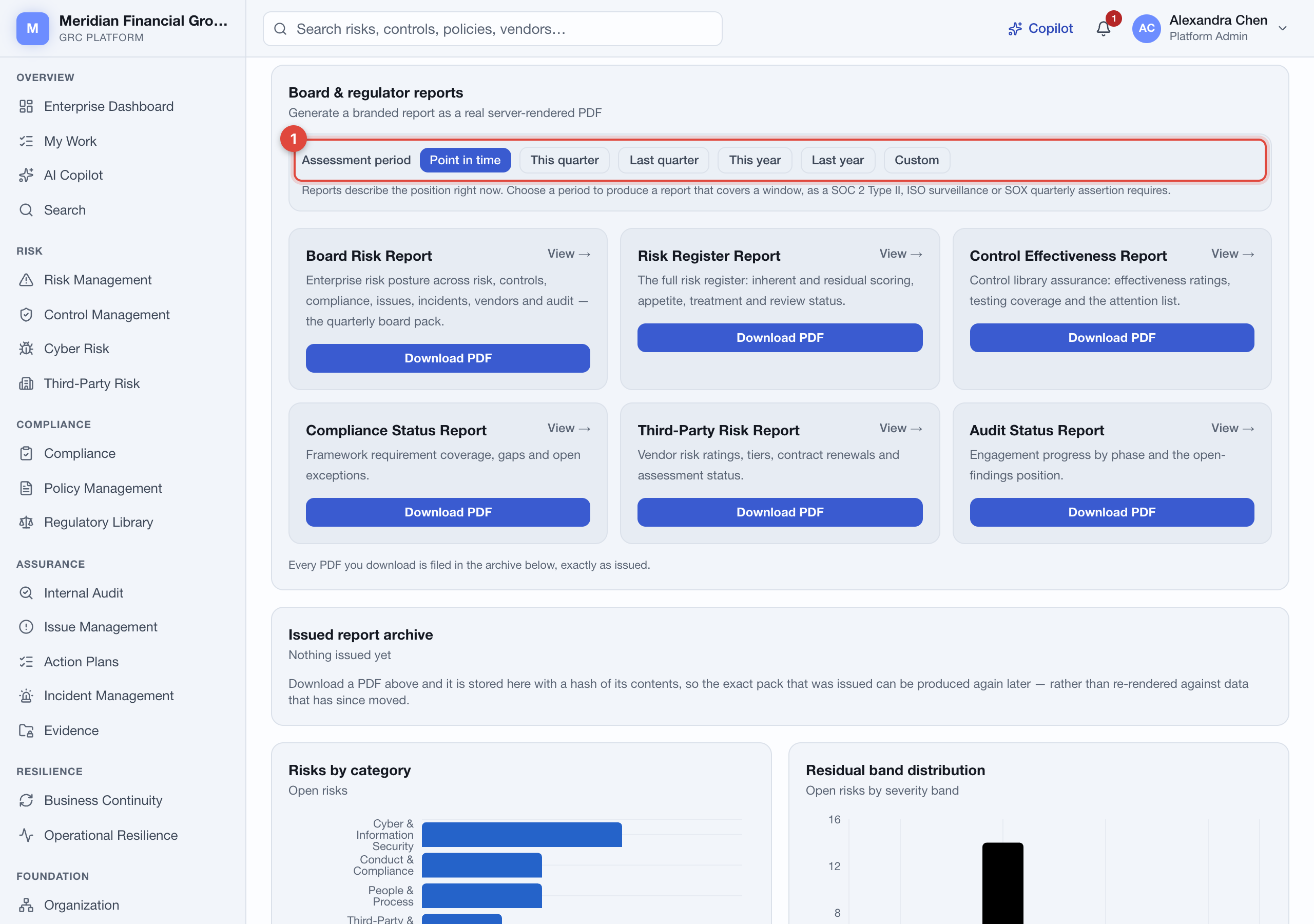
- Assessment period — leave it on Point in time for a snapshot, or pick a window. The note underneath tells you which figures change as a result.
Every PDF you download is filed in the archive below with a fingerprint of its contents, the headline figures as issued, and who issued it. Re-rendering a report months later against data that has since moved produces a different document with the same title — the archive gives you the one that actually went out. If a stored file no longer matches its fingerprint the platform refuses to serve it rather than handing over something altered.
Scheduled delivery
+ New schedule takes a name, the report, a cadence (weekly, monthly or quarterly) and the recipient email addresses, separated by commas or new lines. The table then shows last run, next run and status, and each schedule can be paused, resumed or deleted. Delivery is driven by the server cron endpoint POST /api/cron/reports; recipients get a formatted report by email with a link to the full branded version.
On-page analytics
The Reporting page itself carries drill-down charts — risks by category, residual band distribution, register by status, issues by source, control assurance and compliance coverage — plus a Board Risk Report block with an AI-assisted narrative grounded in live data and your top five residual exposures, with its own Print button.
Integrations#
The connectors below work today, each with a one-click setup that verifies your credentials. Everything else in the catalogue is honest about not being a native connector yet.
Connectors that exist today
/integrations, with administration update permission. Each tile opens a short dialog, saves the connection and tests it immediately — telling you plainly if the test failed, while still saving what you entered.
| Connector | Direction | What you need |
|---|---|---|
| Slack | Push | An Incoming Webhook URL for the target channel. A test message is sent on connect. |
| Microsoft Teams | Push | A Workflows URL from the "Post to a channel when a webhook request is received" template. |
| Splunk | Push | The HTTP Event Collector event URL (usually port 8088) and an HEC token. |
| Jira Cloud | Push | Site URL, your Atlassian email, an API token and the project key to raise issues in. |
| ServiceNow | Push | Instance URL and an integration user with rights to create incident records. |
| Tenable.io | Pull | An access key and secret key from Settings → My Account → API Keys. |
| Qualys VMDR | Pull | Your platform's own API URL plus account credentials. |
| CrowdStrike Falcon | Pull | Region, client ID and client secret with the Spotlight Vulnerabilities: Read scope. |
| Okta | Pull | Org URL and an API token, to pull Okta users into the directory. |
- Push connectors are used as automation actions: add a “Send Slack message”, “Send Teams message”, “Send Splunk event”, “Create Jira issue” or “Create ServiceNow incident” action to a rule and it fires from there.
- Pull connectors get a Sync now button on their card. Syncing is on demand — nothing is scheduled automatically yet, so run it when you want fresh scanner or directory data.
- The Okta connector is a directory pull and is separate from SSO sign-in and from inbound SCIM. You can use any combination of the three.
- Stored credentials are redacted in the interface — anyone with view access sees a truncated value, never a usable secret. Disconnect removes the connection.
API keys and webhooks
- API keys —
/admin→ Developer platform. Authenticate withAuthorization: Bearer <secret>. A key carries explicit module and action grants and is enforced by exactly the same permission engine as a signed-in user, so a key can never reach further than the grants you gave it. Keys show a prefix, their scopes, last use and state, and can be revoked. - Outbound webhooks — register an endpoint URL and subscribe it to the events you care about:
issue.created,incident.created,risk.updatedandpolicy.published. Webhooks can be paused without deleting them.
AI copilot#
Ask questions in plain language and get answers computed from your live data — and never from data you are not allowed to see.
Using it
Open AI Copilot from the sidebar or the shortcut in the top bar. If you are not sure where to start, the suggestion chips are real queries: “What are our top risks?”, “Summarize our compliance posture”, “What is overdue?”, “Detect duplicate risks”, “How is our vendor risk?” and “Give me an executive summary”. Your conversation is kept, so you can pick it up later.
What it can answer today
- Risk — top residual exposures, and duplicate or overlapping risk detection.
- Compliance and regulatory — coverage by framework, obligations tracked and overdue, and regulatory changes still new or under assessment.
- Anything overdue — issues past SLA, overdue risk reviews and control tests, action plans, obligations, continuity plans due for testing and BIA reviews.
- Assurance and operations — audit engagements and findings, incidents, policies and attestations, evidence, action plans, assets and their vulnerabilities, cyber posture, vendors and third-party risk.
- Resilience — BIA, RTO/RPO gaps, continuity plans and critical services that have breached or are near breaching their impact tolerance.
- Platform state — organisation structure, the approval queue and automation rule activity.
- Executive summary — an overall posture narrative, which is also what fills the summary card on the Dashboard and the board report.
How it is bounded
- Every retrieval passes through the same permission gate as the module pages. Another tenant’s data is unreachable, unlicensed modules are skipped, and modules you personally lack view permission on are excluded.
- Each answer lists the modules it used and the ones it had to leave out — and distinguishes “your organisation does not license this” from “you do not have permission, ask an administrator”, because those need different responses from you.
- Answers cite their sources as links back to the underlying records, so every figure is checkable.
- Figures are computed deterministically from your data and work with no AI provider configured at all. When one is configured, the model is used to make the wording more fluent — over a permission-scoped snapshot, never the raw database, and always after the scope boundary has been applied.
AI elsewhere in the product
The same engine powers the executive summary on the Dashboard and Reporting pages, control suggestions on a risk, the optional AI pre-review step in a workflow, the AI triage and AI status update automation actions, and automatic classification of uploaded evidence.
Records, retention & trust#
What the platform can prove about its own record — and what it deliberately cannot.
The activity trail
Every write records who did it, to which record, from which IP address, and when. /admin → Activity trail lets you filter by person, action or date range, page through the result, and export the whole filtered set as CSV — not just the page you are looking at.
Each entry is sealed against the one before it, so altering or removing an entry breaks the chain at a detectable point. Verify integrity checks it on demand and tells you exactly where it stops adding up — the routine to run in front of an assessor rather than a claim to make at them.
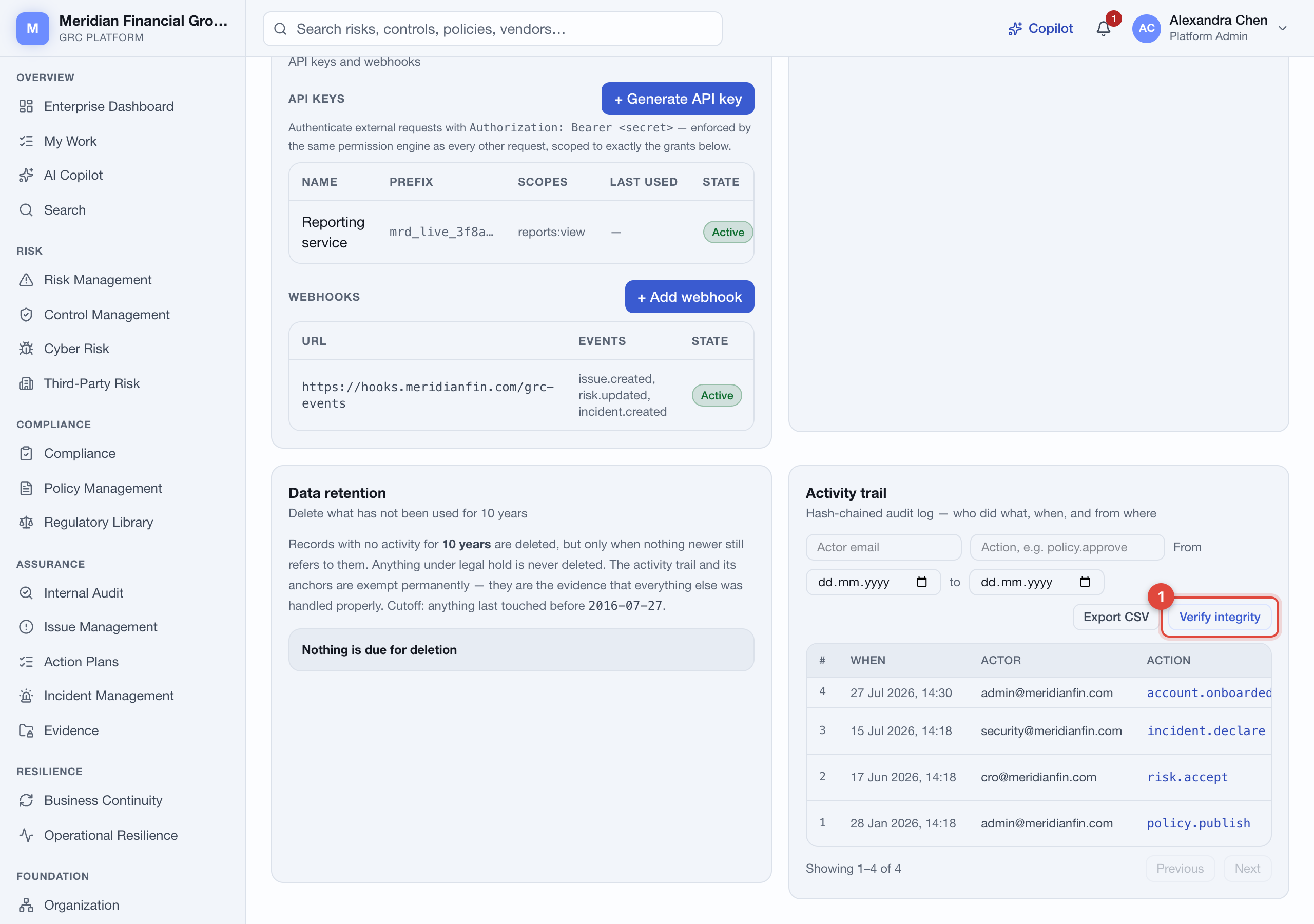
- Verify integrity — re-walks the chain and reports the result, including entries that predate chaining and cannot be verified.
Retention
Records untouched for ten years are deleted — but only when nothing newer still refers to them. Deleting a closed risk that a recent audit finding still cites would leave that finding pointing at nothing, so the platform keeps it and says why.
- Anything under legal hold is never deleted, whatever its age.
- An explicit retain-until date on a piece of evidence overrides the ten-year rule.
- The activity trail and its anchors are exempt permanently — they are the evidence that everything else was handled properly.
- Every purge writes an entry to the activity trail naming the rule and what went, so a legitimate deletion is distinguishable from tampering.
Nothing deletes on a schedule. The weekly check only tells an administrator that records are due; /admin → Data retention shows exactly what would go and what is being kept back, and a person applies it.
Getting your data out — or leaving
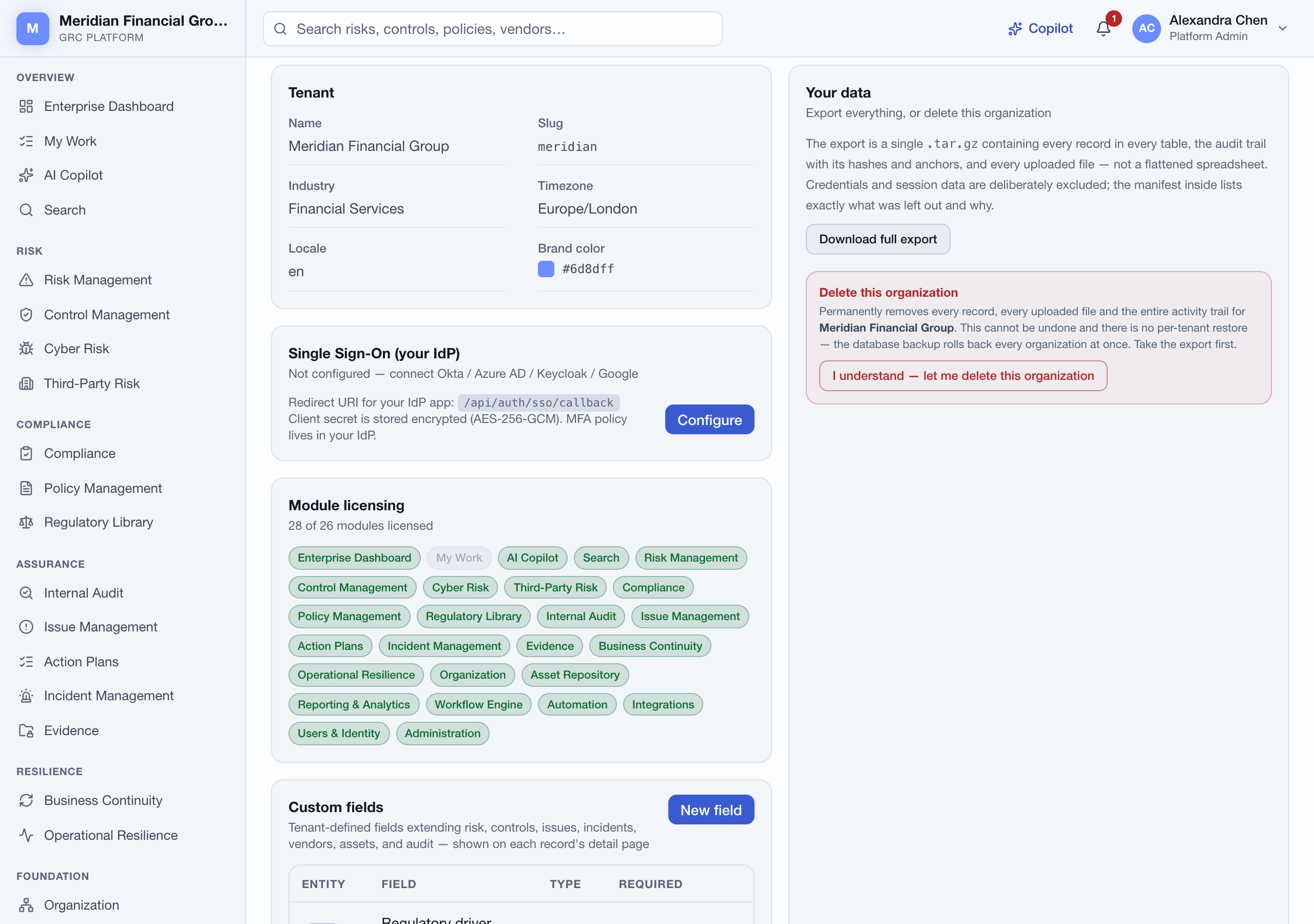
/admin → Your data → Download full export produces one archive containing every record in every table with its relationships intact, the activity trail with its fingerprints, and every uploaded file. Credentials and session data are excluded, and the manifest inside lists precisely what was left out and why.
The same panel deletes the organisation permanently — every record, every file and the entire trail. It asks you to type the organisation’s name, because a yes/no dialog is dismissed by the same reflex that closes a cookie banner. There is no per-organisation restore afterwards, so take the export first.
Approvals that hold up
Approving a policy, granting a compliance exception and deciding a workflow task all ask you to re-enter your password (or your authenticator code, where enrolled), record the exact statement you agreed to, and bind the signature to the specific version in front of you. Changing the record afterwards does not carry the signature with it.
Certain combinations are refused outright rather than warned about: a policy owner cannot approve their own policy, whoever requested an exception cannot grant it, the person who uploaded evidence cannot review it, an issue owner cannot close their own issue, and the person who ran a control test cannot be the one who reviews it. The full list is on /identity beside the access report.
A sensible first week
Organisation structure and roles on day one. Import the framework you are actually being assessed against, then build the controls you already operate and map them as you go — the crosswalk will show you how much of the second framework you got for free. Add evidence and test results as they occur rather than in a pre-audit scramble, and let the schedules do the reminding.